
Quick answer: Start with Bitwarden for free use across devices, 1Password for households, KeePassXC for local desktop control, Proton Pass for email aliases, and Keeper for enterprise evaluation. Test recovery and your everyday logins before committing.
How we selected these password managers
This is a documentation-based comparison, not a hands-on security test. We reviewed official product documentation, pricing and published security information. We compared device support, encryption, recovery, passkeys, exports, sharing and business controls. Recommendations describe useful starting points, not a guarantee that one product is safest for every user.
Pricing checked October 2026: Offers, taxes, billing periods and renewal prices can differ. Confirm the full checkout total and included features before subscribing.
Best password managers at a glance
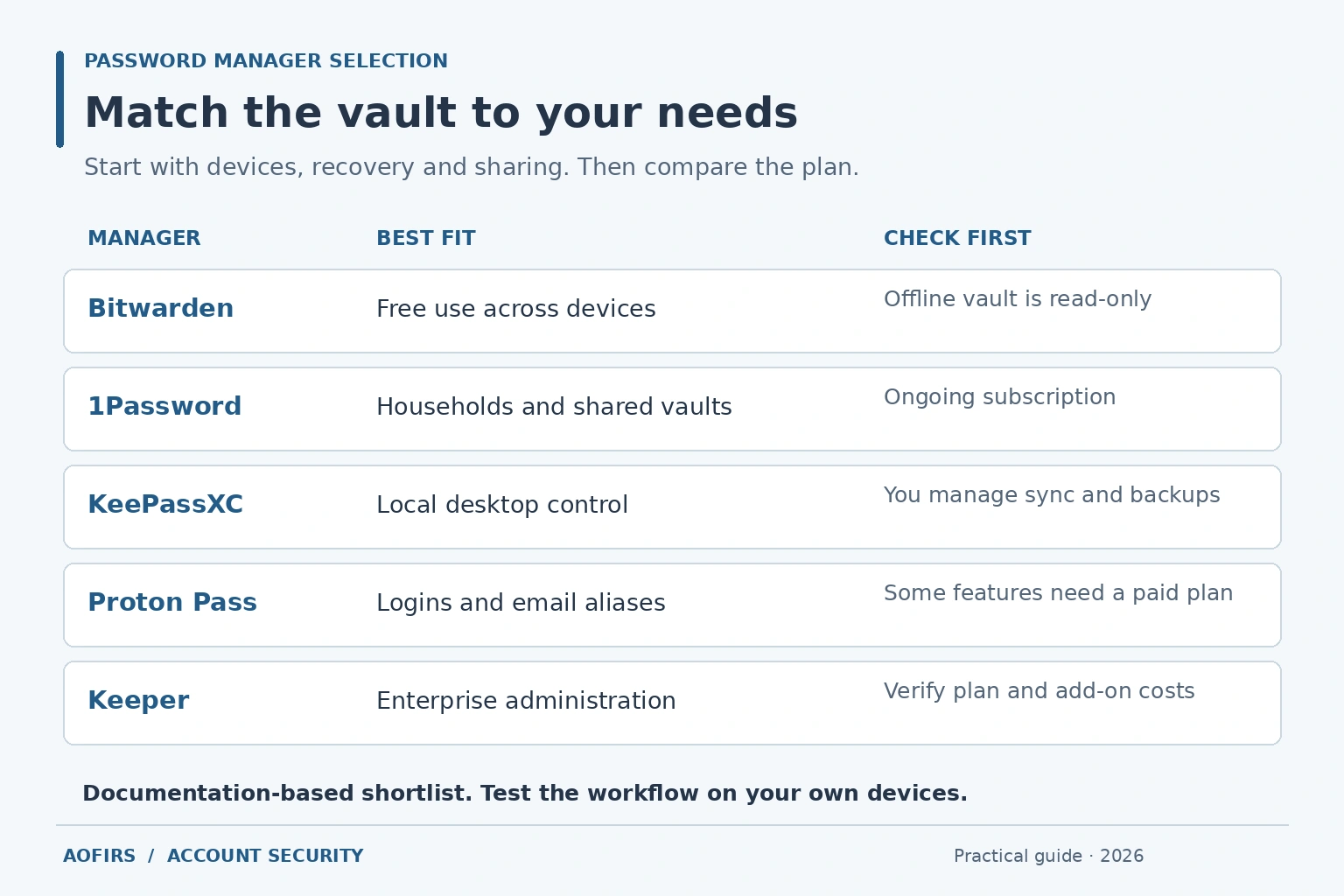
| Manager | Best fit | Main trade-off |
|---|---|---|
| Bitwarden | Free use across devices | Offline access is read-only |
| 1Password | Households and mixed devices | Ongoing subscription |
| KeePassXC | Local desktop vaults | You manage sync and backups |
| Proton Pass | Passwords plus email aliases | Advanced features require payment |
| Keeper | Business administration | Check plan and add-on costs |
Our recommended password managers
1. Bitwarden: Best for free use across devices
Bitwarden’s free plan includes unlimited passwords and devices, passkey management and limited two-person organizational sharing. Apps cover Windows, macOS, Linux, Android and iOS, alongside browser extensions and a web vault.
Premium is listed at $19.80 a year; Families costs $47.88 a year for up to six users, in USD before tax. Premium adds features including an integrated authenticator and emergency access. Its offline access is read-only: an available, previously authenticated vault can be unlocked, but adding or editing items requires connectivity. Self-hosting adds server maintenance and backup responsibilities.
2. 1Password: Best for households
1Password combines private and shared vaults across the five operating systems. Family organizers can assist with account recovery. For traditional password-based accounts, a Secret Key works alongside the account password. Keep the Emergency Kit and applicable recovery information somewhere accessible without opening the vault. Business SSO uses a different sign-in model.
The personal pricing page lists regular monthly prices of $3.99 for individuals and $5.99 for families, with different introductory annual offers. Compare first-year and renewal totals. There is a trial rather than a permanently free personal plan.
3. KeePassXC: Best for local desktop control
KeePassXC is free, open-source software for Windows, macOS and Linux. It stores credentials in an encrypted KDBX database under your control. Its browser extension communicates with the local desktop app.
You arrange synchronization, backups and recovery, including database conflicts and any key files. A forgotten database password cannot simply be reset by the developer. Mobile access requires a separate compatible KDBX app; shared file compatibility does not guarantee matching passkey or sharing features.
Its security-review register identifies specific versions and environments, including the 2.7.4 audit and ANSSI certification for 2.7.9 on Windows 10. Those scopes do not automatically cover every later release or mobile companion.
4. Proton Pass: Best for email aliases
Proton Pass combines encrypted credential storage with hide-my-email aliases. Free includes unlimited logins and devices, passkeys and ten aliases. Apps cover Windows, macOS, Linux, Android and iOS.
Paid plans add capabilities such as unlimited aliases, an integrated authenticator and emergency access. Advertised annual offers include Pass Plus at $35.88 and Pass Family at $59.88 for six accounts; renewal terms may differ. Desktop offline access requires a paid plan. Check the exact client and subscription rather than assuming every feature is free.
5. Keeper: Best for enterprise evaluation
Keeper offers desktop and mobile apps, browser access and secure sharing. Keeper Enterprise includes organizational capabilities such as SAML SSO, SCIM provisioning and directory integration.
Map requirements to the quoted subscription. Advanced reporting or monitoring may involve additional costs. Offline access needs prior setup and can be controlled by administrators. Pilot recovery, sharing, export restrictions and employee departures before deployment. A business shortlist can also include Bitwarden Enterprise and 1Password Business; their packages are not interchangeable.
Choose for your operating system
Bitwarden, 1Password, Proton Pass and Keeper offer apps across all five platforms. KeePassXC covers desktop systems. Availability alone does not establish identical functionality.
- Windows: Check browser integration, vault locking and recovery.
- Mac: Test Safari support and biometric unlocking on your hardware.
- Linux: Confirm your distribution, package format and browser integration.
- Android and iOS: Test autofill and passkeys inside everyday apps as well as browsers.
Built-in browser or device managers may meet simpler needs. Compare their recovery, sharing and device coverage before choosing a separate service. Personal convenience does not establish enterprise governance.
What password manager security claims mean
Unique passwords reduce the chance that one leaked credential exposes your other accounts. Cloud-synced vaults keep encrypted copies across devices; local vaults leave file management to you; self-hosted systems make you responsible for the synchronization server.
End-to-end encryption and “zero knowledge” describe how protected data and decryption keys are handled. They do not make an unlocked or malware-infected device safe. Open source permits inspection, while audits assess particular components and versions. Read findings, remediation and scope instead of counting badges.
Install apps and extensions from official sources. Check the complete website address before entering credentials or approving autofill. A polished page and HTTPS do not establish legitimacy; AOFIRS’ fake website detection guide explains checks beyond surface appearance.
Treat unexpected recovery messages cautiously. Open the service through a known address and confirm unusual requests independently. The article Behind the Email: How Experts Verify Addresses distinguishes an apparently valid address from a verified sender.
Passkeys: Check three separate capabilities
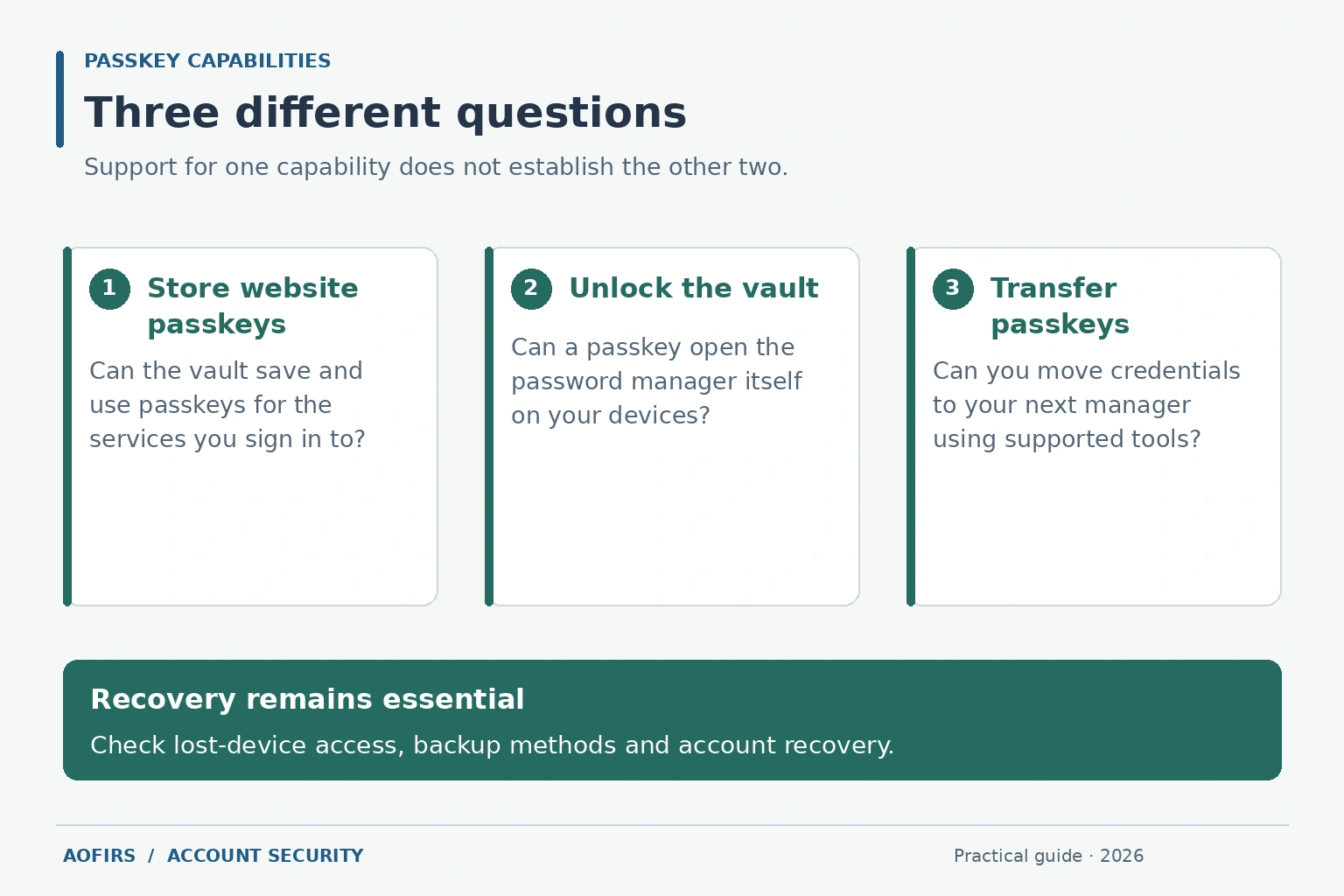
Passkeys use cryptographic credentials bound to the legitimate service and provide phishing-resistant sign-in. Device security and account recovery still matter. Ask separately whether your manager can:
- Store and use website passkeys.
- Unlock its own vault with a passkey on your devices.
- Transfer passkeys to another manager through supported tools.
One capability does not prove the others. Export options vary by client and format. For example, Bitwarden’s export documentation describes format limitations. Do not expect a CSV to preserve every passkey, attachment or sharing permission.
Enterprise: Evaluate the whole lifecycle
Write requirements for role-based permissions, SSO, SCIM, administrator recovery, event logs and sharing. Confirm which subscription includes each control and who can authorize recovery. Review contractual data residency, hosting, backups and identity-provider dependencies.
Include phishing-resistant procedures around support and recovery. AOFIRS’ research on email verification and phishing detection provides additional context for investigating suspicious messages.
During offboarding, revoke access and rotate exposed shared credentials. Removing vault access cannot erase a password someone already copied. A workforce vault also does not automatically replace privileged access management, developer secrets management or customer identity systems.
Test recovery and migrate carefully
Start with a test account. Change its password, then sign in on a computer and phone. Confirm synchronization, domain matching, vault locking and private-versus-shared boundaries.
Rehearse losing a phone without deleting anything. Identify the recovery documents, backup authentication methods or authorized helpers you would need. Fix circular recovery instructions that depend entirely on the locked vault.
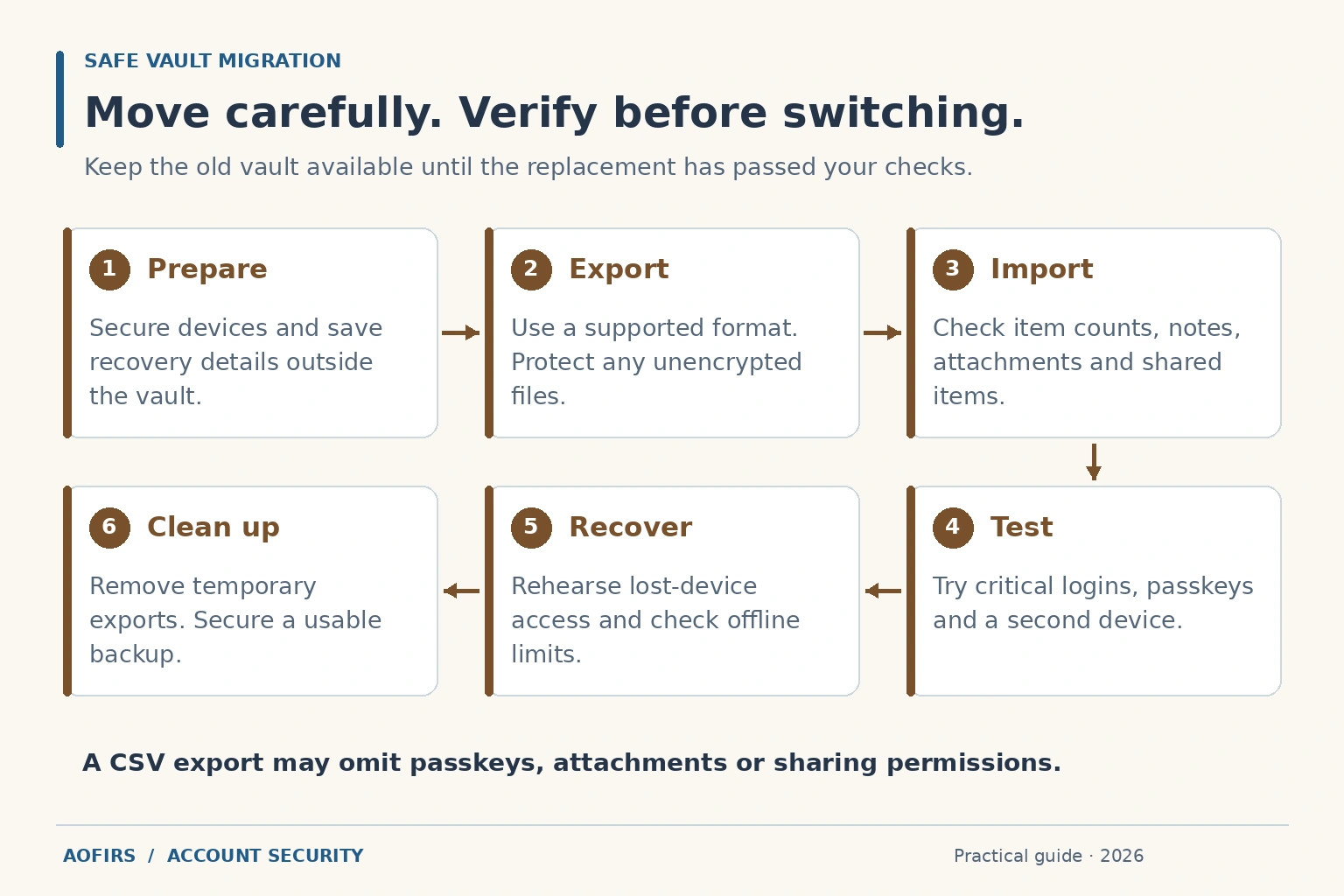
- Prepare: Update devices, install official apps, choose a long unique master password where required, and enable MFA. Keep recovery information securely outside the vault.
- Transfer: Use the supported export and import process. Protect plaintext exports and avoid unnecessary synced copies.
- Verify: Compare item counts and important fields. Test critical logins, notes, attachments, shared items and passkeys on a second device. Check offline behavior.
- Finish: Keep the old vault until checks pass. Secure a usable backup and remove temporary exports, including recoverable copies. Deletion may leave copies in synchronization or backup systems.
Frequently asked questions
Which free password manager should I start with?
Bitwarden is a strong starting point for free synchronization. Proton Pass is useful when aliases matter. Check sharing and recovery limits.
Which option suits Linux?
KeePassXC suits local desktop control. The other shortlisted services suit users wanting provider-managed synchronization with phones.
Are browser password managers enough?
They can be, if device coverage, recovery and sharing meet your needs. Compare the actual workflow before switching.
Can I use a vault offline?
KeePassXC uses a local database. Cloud services have different authentication, caching and editing rules. Configure and test offline access before travel.
Do passkeys eliminate every password?
No. Adoption and recovery vary by service. You may still need passwords, passkeys and recovery information together.
What if I forget my master password?
Options depend on prior setup and account type. Recovery codes, organizers or administrators may help. A reset does not necessarily restore encrypted data.
Should MFA codes share the vault?
It is convenient but concentrates access. For critical accounts, consider a separate authenticator or hardware key, with an independent recovery route.
How should a business choose?
Run a team pilot covering adoption, sharing, recovery, logs and offboarding. Compare required controls and total costs.