
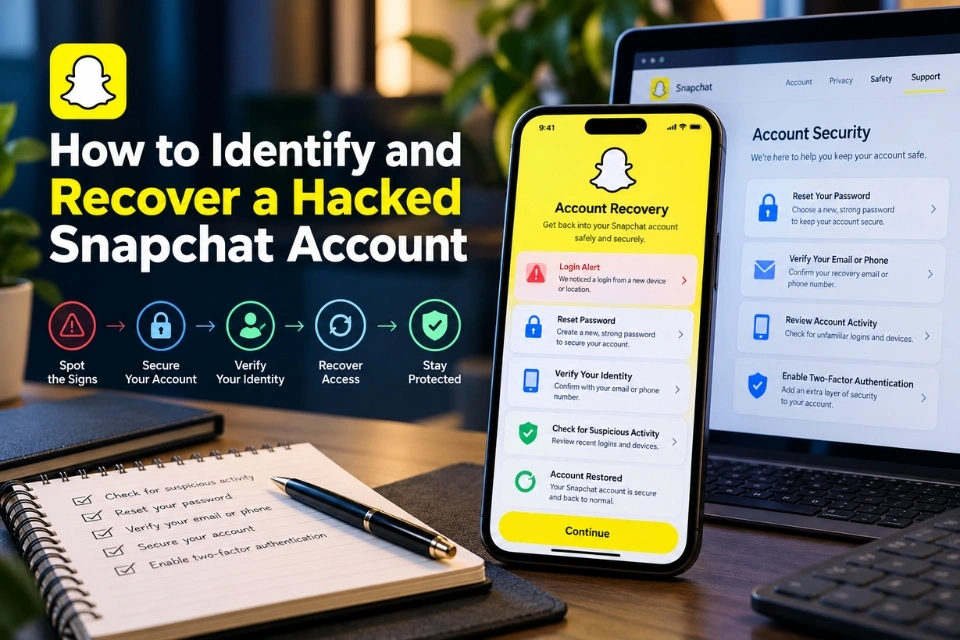
If your Snapchat account has been hacked, change your password, remove unfamiliar active sessions, and secure the linked email account. If you cannot sign in, use Snapchat’s official email or SMS recovery options, then its compromised-account assistance if needed. Recovery depends on your account status and ability to verify ownership.
A takeover can expose conversations and let someone impersonate you. However, an unexpected code, forgotten password, or account lock does not by itself prove that someone accessed your account. This guide distinguishes those situations and follows Snapchat’s official guidance checked on 14 October 2026.
Quick answer: what should you do first?
Still signed in? Change the password, review recovery details, and end unknown sessions. Locked out? Try the registered email or phone recovery route. Recovery details changed? Check legitimate security notices and use compromised-account support. Never share login codes or pay someone promising guaranteed recovery.
How to identify a hacked Snapchat account
Snapchat’s compromised-account guidance identifies unfamiliar sessions, unauthorised account changes, and activity you did not perform as warning signs.
| What you notice | What to check | Next action |
|---|---|---|
| Unrequested login code | A login attempt may have been blocked | Do not share the code; review security |
| Unknown active device | Someone may have a signed-in session | End it and change your password |
| Email, phone or password changed | Recovery information may be compromised | Use official recovery or support |
| Messages, Stories or friends you did not add | Unauthorised activity | Secure access and warn affected contacts |
| Repeated logouts or login errors | Account, app or device problems are also possible | Read the exact error before choosing a route |
Does a suspicious login alert prove a takeover?
No. A code you did not request may indicate an attempted sign-in rather than successful access. An unfamiliar active session or unauthorised change is stronger evidence. Follow Snapchat’s unexpected sign-in alert instructions and check inside the app instead of trusting an unsolicited message.
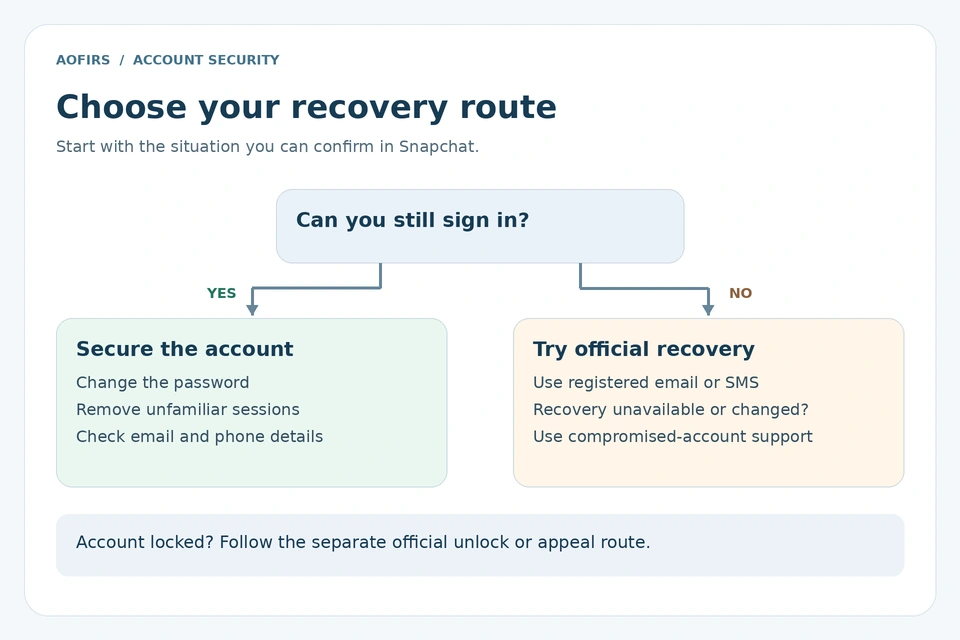
Recover your account if you can still sign in
1. Change your password and secure your email
Open your Snapchat profile, tap the gear icon for Settings, and select Password. Follow the prompts to set a unique password. If you cannot complete the change, use the official reset process. Use a trusted device if you suspect your usual phone is compromised.
Secure the linked email account separately: change any exposed password, review its sessions and recovery settings, and enable stronger authentication. Otherwise, an attacker controlling your mailbox may interfere with future resets. AOFIRS’s guide to digital security for researchers explains how protecting recovery paths and separating accounts reduces wider exposure.
2. Verify your email address and mobile number
In Settings, open My Account and review your contact information. Correct unauthorised changes where possible and complete the verification prompts. Never add an email address controlled by someone else, even if they offer a gift card or free subscription.
3. End unfamiliar sessions
Follow Snapchat’s Session Management instructions: open Settings → My Account → Session Management, tap the X beside an unfamiliar device or browser, and confirm. On the Snapchat Accounts Portal, choose Session Management and Log Out beside the relevant session.
The list shows active sessions, not every device with saved login details. Ending a session may take time. Removing a device also does not replace changing exposed credentials.
4. Review activity and preserve useful evidence
Check recent messages, Stories, profile changes and friends. Record unauthorised changes and legitimate security notices before removing suspicious content. Warn affected contacts through a trusted channel. If fraud, threats or identity theft occurred, retain relevant evidence and report through appropriate official channels.
Recover your account if you cannot sign in
Start with Snapchat’s official password reset instructions. Menu wording can vary by app version.
Reset by email
- On the login screen, select Forgot your password?
- Choose email and use the address associated with your account.
- Check your inbox and spam folder for the reset message you requested.
- Follow its instructions to create a new password, then review sessions and recovery details.
Recover by SMS or the Accounts Portal
Choose SMS from the forgotten-password options, enter the verification code sent to your registered number, and follow the prompts. Update your password once signed in. Alternatively, open the Accounts Portal, enter your associated email or phone number, select Forgot Password, and follow the offered verification route.
Use a recovery method you control. SMS is not automatically safer than email: a stolen or fraudulently transferred phone number can expose text codes. Resetting a password also does not bypass an existing two-factor authentication requirement.
What if your email or phone number was changed?
Check your original mailbox for legitimate Snapchat notices about password or contact changes. Some notices may offer a way to reverse an unauthorised change. Verify the notice before acting. AOFIRS’s report on email verification and phishing detection explains why suspicious email sources deserve closer examination.
If you cannot access either registered recovery method, ordinary password reset may be unavailable. Knowing a username alone is insufficient. Snapchat’s account-access guidance describes these limits. For an actual takeover, use compromised-account assistance rather than repeatedly requesting ordinary resets.
Contact official Snapchat Support
Open the official compromised-account help page and follow its link to Snapchat Support Bot. Prepare your username, an email address you can access, when you lost access, and a concise description of unauthorised changes. Supply account-identifying information only through the official process.
Never disclose your password, an old password, My Eyes Only passcode, login code or Recovery Code to a person claiming to be support. Snapchat says its representatives do not need your password or My Eyes Only passcode. Recovery is not guaranteed.
Account locks and other recovery problems
A lock is a separate issue from a takeover. Use Snapchat’s locked-account instructions, rather than assuming another password reset will remove the restriction.
| Problem | Appropriate route | Limitation |
|---|---|---|
| Temporary lock | Try the official portal’s Unlock option when offered | You may need to wait |
| Permanent lock | Use Appeal Decision in the app if displayed | Not every account is eligible |
| Lost 2FA device | Use an available authentication method or previously generated Recovery Code | Support cannot replace a lost Recovery Code |
| Deactivated account | Follow the official reactivation process promptly | Permanently deleted accounts cannot be restored |
How account takeovers happen
Common routes include fake login pages, reused passwords exposed elsewhere, impersonation, malicious applications and compromised recovery email. Attackers may pose as a friend or support worker and ask for a code. A familiar profile picture does not establish identity; AOFIRS’s guide to fake social media accounts and information risks explains why apparent credibility needs verification.
A polished website or HTTPS connection is also insufficient proof of legitimacy. Before trusting an unfamiliar recovery page, apply the checks in AOFIRS’s visual guide to identifying fake websites. Open official help directly when a message pressures you to act urgently.
Secure your Snapchat account after recovery
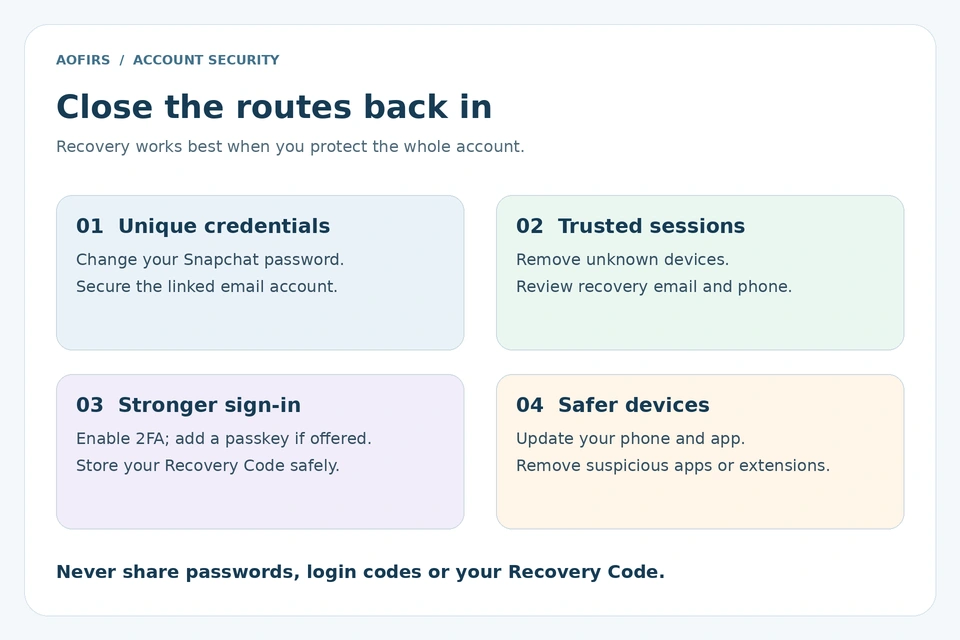
Enable two-factor authentication
In Settings → My Account → Two-Factor Authentication, follow the setup prompts. Snapchat supports SMS and authenticator applications. Its 2FA guidance recommends stronger options such as an authenticator app or passkey alongside current recovery information. These reduce risk but do not make compromised devices or shared codes safe.
Generate and protect a Recovery Code
Under Two-Factor Authentication, select Recovery Code → Generate Code and follow verification prompts. Store it in a protected password manager or secure offline location. Create it before losing access. Snapchat’s Recovery Code instructions state that support cannot recover lost codes. Signing in with one turns off 2FA, so enable 2FA again afterward.
Add a passkey where available
Find Passkey under My Account, choose Add Passkey, and follow your device’s prompts. Snapchat’s passkey documentation notes that availability is still rolling out. Review listed passkeys for unfamiliar entries, keep your device locked, and protect the account storing your passkeys.
Finish the security review
Update Snapchat and your phone, remove suspicious apps or extensions, replace reused passwords elsewhere, and confirm your recovery details remain correct. Review active sessions periodically. If suspicious activity continues, investigate device and email security as well as Snapchat access.
Avoid fake account recovery services
Do not pay people claiming privileged access to Snapchat. Warning signs include guaranteed restoration, cryptocurrency or gift-card payments, requests for codes, and instructions to install remote-access software. A recovery scam can turn one lost account into stolen money or further account compromises. Use official channels and verify any follow-up message independently.
Frequently asked questions
Can I recover Snapchat without email or a phone number?
Ordinary password recovery requires accessible registered recovery information. For a takeover, try official compromised-account support, but restoration is not guaranteed.
Does an unexpected login code mean I was hacked?
Not necessarily. It may represent an unsuccessful attempt. Do not share it; check sessions and account changes inside Snapchat.
Can support recover every hacked account?
No. Account status, available recovery methods and ownership verification affect the outcome.
How do I remove an unknown device?
Open Session Management, select the X beside the device, and confirm. On the web portal, use Log Out.
Can I bypass two-factor authentication by resetting my password?
No. A password reset does not remove the need for the required authentication or Recovery Code.
What if I lose my Recovery Code?
Snapchat does not provide support for lost Recovery Codes. Losing both the code and your usual authentication method may prevent access.
Can a locked account be appealed?
Use the in-app Appeal Decision option if it appears. Unrelated support requests do not bypass account-lock restrictions.
How do I prevent another takeover?
Use unique credentials, stronger authentication, protected recovery methods, current software and regular session reviews. Never share codes or trust guaranteed-recovery offers.
Conclusion
Respond according to the access you still control. Secure a signed-in account immediately; use official recovery when locked out; and follow the separate lock or appeal route when applicable. Protect your email and devices alongside Snapchat so an attacker cannot simply return through another route.