Research packets fall apart the moment a clip arrives without a source trail. A student can hand over a smooth short scene and still be unable to say which still, which camera move, or which audio file produced it. That is the hole a verification course has to close before anyone treats generated video as evidence. A workspace that keeps the prompt, the named uploads, and the output in one bench is the product that actually helps. Seedance 3.0 is the model name on that bench, and the job is not to decorate a slide. The job is to leave a trail a second person can reopen.
The site that hosts the bench is SeedVideo, an independent studio that is not affiliated with ByteDance. The model family belongs to ByteDance; the workspace is a third-party place to run the workflow. That split matters on a research desk, because the first question is not “does this look cinematic.” The first question is “can I point to the files and the sentence that were supposed to control the clip.” If the answer is no, the clip is a file, not a source.
Research Clips Fail When Nobody Can Name The Source
Internet research training already spends a lot of time on search results that sound finished and still cannot be checked. Generated video now sits in the same pile. A course packet that asks for “a short explainer” will collect handsome clips with no still, no prompt, and no note about what was supposed to stay fixed. The next person who opens the folder cannot tell a careful render from a lucky one.
The cost shows up as lost class time, not as a missing feature list. An instructor who has to reconstruct the brief from memory is doing the student’s homework twice. A reviewer who cannot name the reference cannot defend the clip in a seminar. That is why a product blog about this workspace has to start with the trail, not with a slogan about cinematic quality.
A usable packet therefore has three pieces that travel together: the written brief, the uploads that the brief points to, and the clip that came back. If any piece is missing, the packet is not ready for a second reader. The rest of this article is about how the bench keeps those three pieces in one place, and what a researcher should still check by hand.
What A Traceable Video Workspace Actually Holds
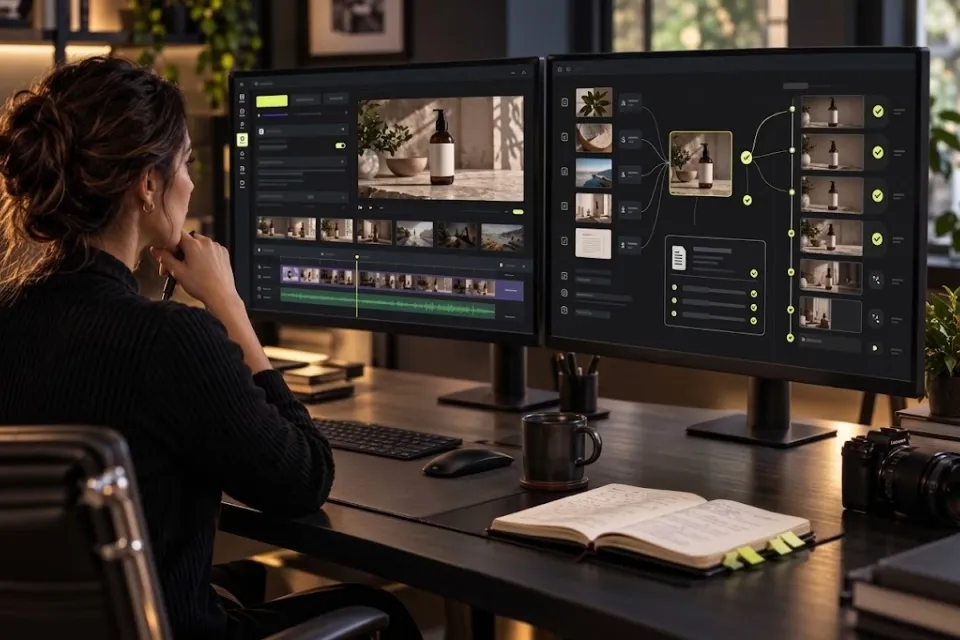
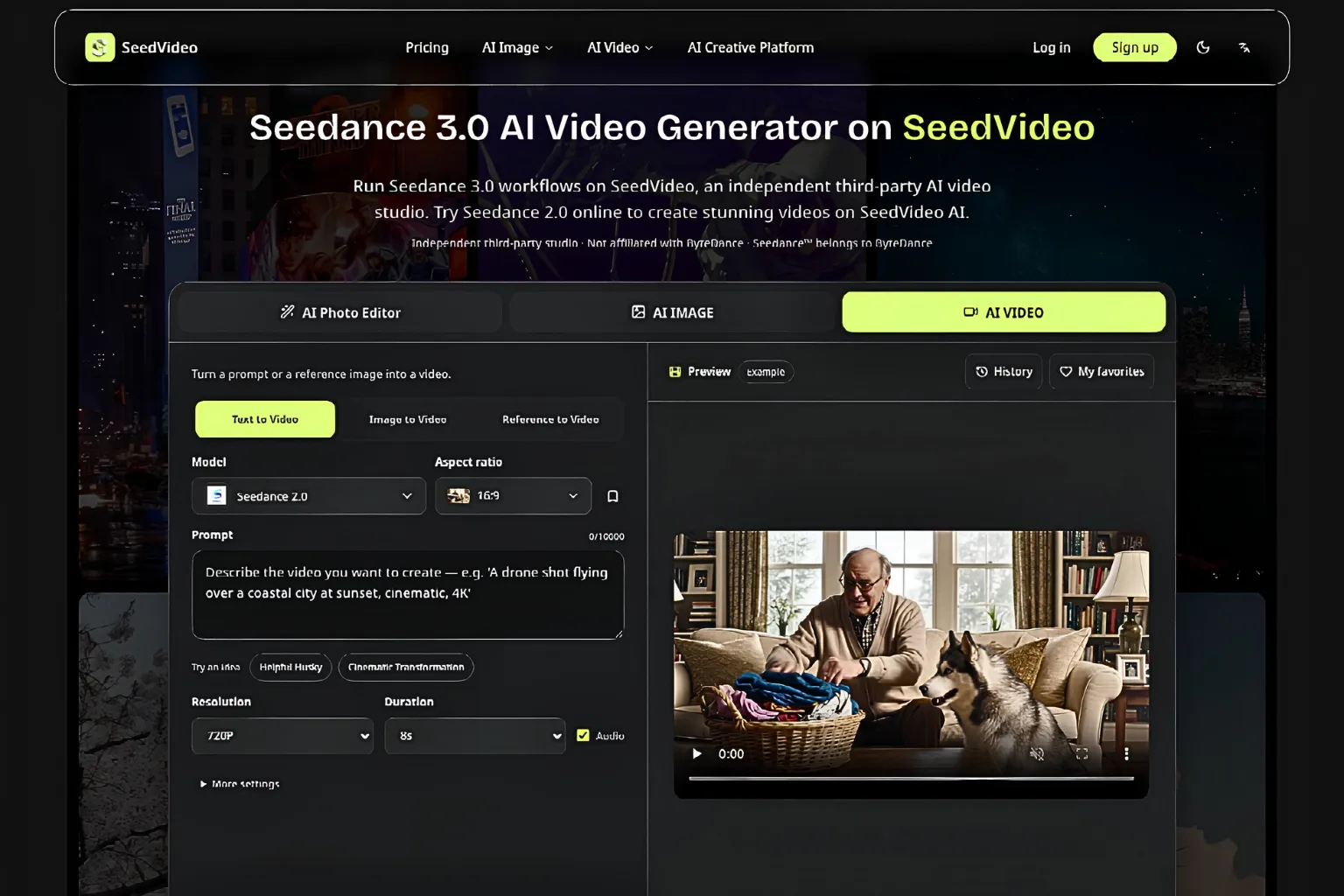
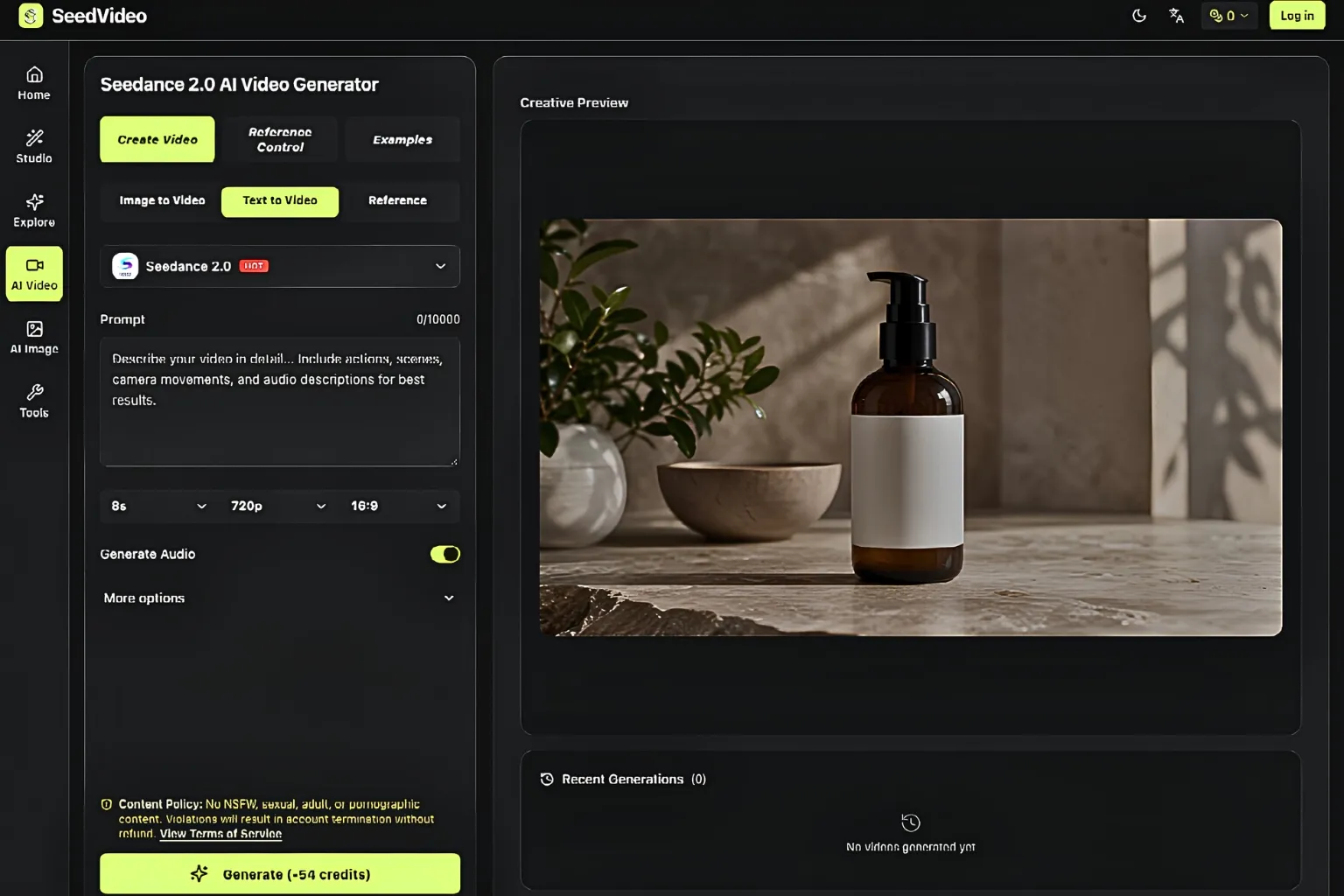
SeedVideo puts text, stills, clips, and audio on the same generation bench. You can start from a sentence, from a reference image, or from both. The homepage workbench is built around that mix: a prompt field, a place for a reference image, and extra settings such as Last Frame, Web Search, and Find Inspiration. Last Frame is the one that helps a research brief the most, because it asks the model to respect an ending you already chose instead of inventing a new close.
The model on the banner is Seedance 3.0, described on the site as a multi-modal video model. You can feed it images, video, audio, and text in one pass, and you can say in ordinary language which upload should guide motion, camera, character, or sound. The site also says the model is built to hold faces, clothing, on-screen text, and visual style through the clip, which is the claim a research desk should treat as a hypothesis, not as a certificate.
How The Prompt And The Mention Share One Job
The official how-to on the homepage is short. Upload images, videos, or audio as references. Describe the scene in natural language and tag those references with @ inside the prompt. Generate, then extend or edit if the first pass is close. Download a watermark-free file when you are ready to keep it. The @ mention is the piece that turns a vague prompt into a brief another person can read, because it names the file that was supposed to control the shot.
A research packet that uses this bench should copy the prompt into the notes, including the @ tags. If a later reader cannot see which still was @character and which clip was @camera, the workspace did its job and the packet still failed. The product helps you make the trail. It does not file the trail for you.
Why Named References Beat A Pretty Export
Pretty exports are cheap to collect and expensive to defend. A seminar can waste a whole hour arguing about whether a face “looks consistent” when nobody brought the still that was supposed to lock that face. Named references cut that argument down. You open the same still, you read the same @ line, and you look at the clip against that pair. If the clothing changes or the on-screen text smears, the packet has a visible fail, not a taste debate.
That is also why this workspace is worth opening for course work even when the clip will never be published. The value is the shared bench: prompt, uploads, and output in one view. A student who only pastes a finished file into the LMS has given you nothing you can mark except polish. A student who can reopen the bench and show the @ mentions has given you a method.
The site compares the newer model with Seedance 2.0 by promising stronger multi-modal support, tighter reference control, and more room to extend or edit a clip while keeping the rest of the scene. Treat those as product claims to check against the still you uploaded, not as research findings. If the clothing drifts, the claim did not hold for that brief. If the face holds and the caption smears, you now know which part of the packet needs a human rewrite.
How A Researcher Walks The SeedVideo Bench
The walk-through on the site is the one to follow, because it matches the buttons. Create an account, choose Seedance 3.0 in the AI video workbench, upload the references, write the brief, set ratio and duration, then generate. New accounts receive free trial credits, so a first packet does not have to start as a paid production. Keep the first brief small: one subject, one motion, one camera path, and one job per upload.
Ratio and duration sit next to the prompt for a reason. A research clip that will live in a slide deck usually wants the 16:9 frame the homepage already shows. A clip that will sit in a vertical story needs a different crop, and that choice belongs in the written brief so a second reader knows why the frame looks the way it does. Do not hide the crop in a later edit and then pretend the bench produced it.
Give Each Upload One Job In The Brief
The supporting guide on the site is blunt about this: give each reference one job, such as identity, product shape, scene, style, first frame, or continuity. A research brief should copy that habit. If one still is the speaker, say so. If one clip is only the camera move, say so. If the audio file is only the rhythm, say so. When two uploads fight for the same job, the clip becomes harder to defend because nobody can say which file was supposed to win.
Write the brief the way you would write a methods note. Subject first, then the visible action, then the camera, then the @ lines. The site’s own prompt pattern reads like production notes rather than a pile of adjectives, and that is the version a CIRS-style course can mark. “Cinematic, stunning, viral” tells a reviewer nothing. “@still1 keeps the jacket; the camera pushes in; no new caption” tells a reviewer what to look at.
| Packet Piece | What the Second Reader Should See | Reject Signal |
|---|---|---|
| Written brief | Subject, action, camera, and @ jobs | Mood words only, no named files |
| Uploads | The still, clip, or audio the brief points to | A finished video with no sources |
| Output | The clip next to those files | Face, clothing, or caption that no longer matches |
The table is a marking sheet, not a lab ritual. If the second reader cannot fill the middle column, the packet is incomplete. If the middle column is full and the right column lights up, the workspace still did something useful: it made the fail visible.
Where Generated Video Fits A Course Packet
Generated video belongs in a course packet when the assignment is about method, not when the assignment is about proving a fact in the world. A short clip can show how a student specified a scene. It cannot stand in for a field recording, a dated archive film, or a cited news video. Say that out loud in the rubric so students do not treat a successful render as a source for the event it depicts.
The useful classroom jobs are narrow. Rebuild a diagram as motion so a later slide can show the same objects moving. Hold one still of a product or a person and ask whether the clothing and on-screen text survive the move. Extend a clip the student already made and ask whether the new seconds still match the first brief. Those jobs teach control. They do not teach students to invent footage of a place they never visited.
SeedVideo also ships image tools on the same site for stills that need a cleaner crop, a background lift, or a sharper frame before they go into the video bench. Use those tools when the still is the evidence you intend to keep. Do not use them to manufacture a “source photo” that never existed. The research integrity problem starts at the still, not at the generate button.
When a student wants Seedance 3 for a public-facing reel instead of a marked packet, the same trail still helps. A comms desk that can reopen the prompt and the @ mentions can fix one thing at a time. A comms desk that only has the export will argue about taste until the week is gone.
Where This Workspace Still Needs A Human
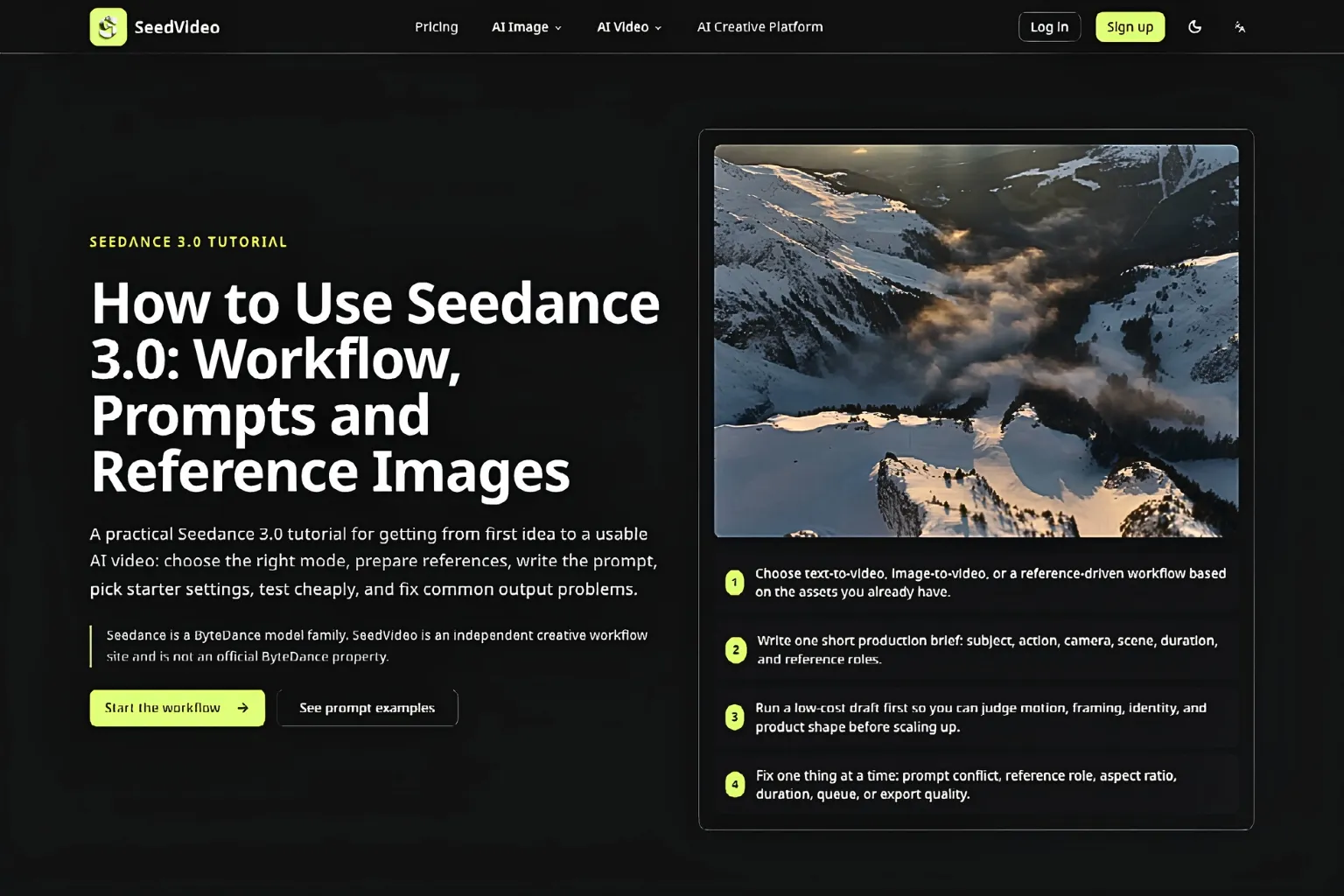
The banner model is not broadly available yet; the site still points people to Seedance 2.0 while Seedance 3.0 is coming soon. A research desk should write down which model the bench actually ran. Generated video is also not a substitute for a cited recording. If clothing drifts or a caption smears, reject the clip and keep the brief.
Keep The Brief If The Source Trail Holds
This workspace is for people who have to show their work. Instructors, research trainers, and anyone who marks a methods note will get more from SeedVideo than a team that only wants a pretty file to drop into a story. The product is worth opening when the packet needs a prompt, named uploads, and an output that can sit next to those files.
Skip it as a source of facts about the world. A generated street, a generated speaker, or a generated archive card is still generated. Keep the brief, keep the stills, and treat the clip as a demonstration of control. If the trail holds, the packet can travel. If the trail is gone, the clip is only decoration.