Finding a video often takes more than a YouTube search. A recording may sit on a news website, social platform, public archive or stock library. This guide organizes 50 video search engines, searchable websites and specialist tools by what they actually search.
Quick answer
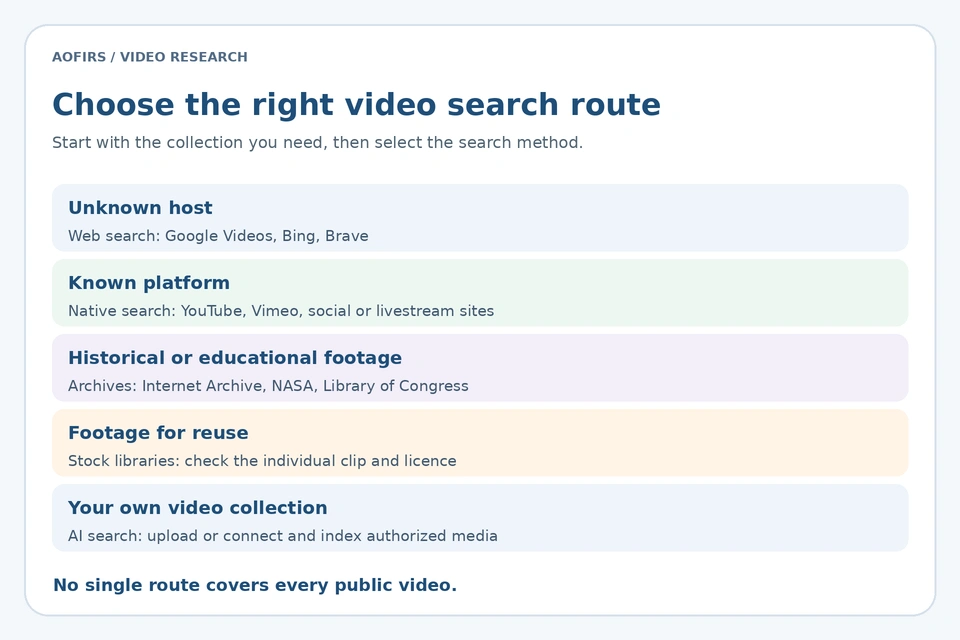
Start with Google Videos, Bing Videos or Brave for broad discovery. Search YouTube or another platform directly when you know the host. Use institutional archives for historical material, stock libraries for reusable footage, and reverse-image tools to investigate keyframes. AI collection tools search media you have indexed or can access.
What is a video search engine?
A video search engine retrieves recordings using available titles, descriptions, captions or other indexed information. Some systems also analyze speech, on-screen text or visual content. Their capabilities depend on the collection and technology involved.
Web search engines discover video pages across multiple domains. Hosting platforms search their own accessible collections. Archives add catalog information, while AI systems can retrieve moments inside managed recordings. No option covers every public video, and private or unindexed content may be absent.
50 video search engines and websites
The directory separates general discovery from archives, licensing services and collection search. The final column summarizes the main purpose and a practical limitation.
Web video search
Start with a subject and distinctive detail, then compare the publishers represented in the results. Try Russian or Chinese terminology for relevant regional research. Open the actual recording; thumbnails, snippets and displayed dates do not establish who filmed an event.
| # | Service | Purpose and limitation |
|---|---|---|
| 1 | Google Videos | Broad discovery across indexed websites; switch to video results. |
| 2 | Bing Videos | Compare web results, thumbnails and publishers with Google. |
| 3 | Yahoo Video Search | An additional discovery interface; expect overlap with other engines. |
| 4 | Yandex | Useful for Russian-language video discovery; regional access varies. |
| 5 | Baidu | Chinese-language web discovery, including video pages; interfaces and access vary. |
| 6 | Brave Search | Video results from Brave’s independent video index. |
| 7 | DuckDuckGo | Video discovery through its search interface and external content sources. |
Video hosting and discovery
Search the creator, channel or production company directly. YouTube supports broad discovery, while Vimeo can help locate creative portfolios. Search other hosting collections when relevant. SepiaSearch covers participating PeerTube instances rather than every server. Use appropriate languages and inspect each account’s publication context.
| # | Service | Purpose and limitation |
|---|---|---|
| 8 | YouTube | Tutorials, interviews and channels; native search covers accessible YouTube content. |
| 9 | Vimeo | Filmmaking, creative portfolios and professional productions; availability depends on owners. |
| 10 | Dailymotion | Publisher videos and topical clips within its hosted collection. |
| 11 | Rumble | Creator uploads and broadcasts; assess each uploader and claim. |
| 12 | Odysee | Creator channels and alternative distribution; corroborate unfamiliar sources. |
| 13 | PeerTube / SepiaSearch | Search participating PeerTube instances; coverage does not include every server. |
| 14 | Bilibili | Chinese-language creator and educational videos; some features require registration. |
| 15 | Niconico | Japanese-language videos and communities; access conditions vary. |
| 16 | Rutube | Russian-language hosted videos and broadcasts; regional restrictions may apply. |
Social clips and livestreams
Search an event, account, hashtag or location separately before combining clues. Distinguish the person sharing a clip from its creator. Popular posts may contain edited extracts or older footage with new captions. Follow credits and links to longer versions with clearer publication context.
Native discovery can reveal clips missed by web indexes. The AOFIRS guide to social media search engines explains how platform search, web search and monitoring differ.
| # | Service | Purpose and limitation |
|---|---|---|
| 17 | TikTok | Short videos and trends; visibility, login and regional restrictions vary. |
| 18 | Reels and creator accounts; private content remains restricted. | |
| 19 | Public videos, pages and broadcasts; group and account permissions matter. | |
| 20 | Twitch | Live channels, clips and available recordings; recordings can expire. |
| 21 | Kick | Live creators and available recordings; playback depends on channel availability. |
| 22 | X | Video posts and event discussion; search access may require login. |
| 23 | Community videos and linked footage; inspect the original source behind reposts. |
Educational and historical collections
Search by event, person, location and approximate period. Try historical place names and spelling variants. Assess individual Internet Archive items because contributors and provenance vary. Institutional collections provide focused context, while news archives address different reporting needs. Read catalog descriptions and item records before drawing conclusions.
| # | Service | Purpose and limitation |
|---|---|---|
| 24 | Internet Archive | Moving-image collections with varied provenance and item-specific rights. |
| 25 | NASA Image and Video Library | Spaceflight and science media; check usage guidance and third-party credits. |
| 26 | Library of Congress | Curated film and video collections with catalog records and rights notes. |
| 27 | TED | Talks searchable by topic and speaker; reuse has separate conditions. |
| 28 | Khan Academy | Structured educational lessons; useful when the subject matters more than the publisher. |
| 29 | C-SPAN | US public affairs, hearings and speeches; consult program details and access terms. |
| 30 | British Pathé | Historical newsreels; preview access does not confer publication rights. |
| 31 | AP Archive | News footage and historical collections; licensing is generally commercial. |
| 32 | Europeana | European cultural collections; filter for video and inspect contributing institutions. |
| 33 | Wikimedia Commons | Media files with source and licence details; verify each file’s conditions. |
| 34 | Smithsonian | Institutional collections and educational material; media availability varies by item. |
Free and mixed stock libraries
Use stock footage to illustrate an idea rather than document a particular event. Search concrete scenes and compare resolution, orientation and duration. Check each selected asset’s download conditions and save its page with your project records. Clearly identify illustrative footage in research or educational work.
| # | Service | Purpose and limitation |
|---|---|---|
| 35 | Pexels | Free stock clips under the Pexels licence; check permitted uses. |
| 36 | Pixabay | Stock videos under its content licence; additional rights can still matter. |
| 37 | Mixkit | Stock clips with asset-specific licence conditions; inspect the selected download. |
| 38 | Coverr | Stock footage discovery; check current download plans and licence terms. |
| 39 | Videvo / Magnific | The Videvo address currently presents Magnific branding; check free attribution requirements. |
| 40 | Videezy | Free and premium footage; attribution and permitted uses depend on the asset. |
Commercial footage libraries
Compare the exact asset, intended use, format and available documentation before purchasing. Similar clips may have different permissions or source information. Ask the provider about unclear terms. Keep the asset identifier and purchase record so colleagues can trace the footage and its licensing documentation later.
| # | Service | Purpose and limitation |
|---|---|---|
| 41 | Shutterstock | Commercial stock footage with paid licensing and previews. |
| 42 | Adobe Stock | Searchable professional footage; download rights depend on the purchased licence. |
| 43 | Getty Images | Editorial and creative video; usage, pricing and permissions vary. |
| 44 | Pond5 | Footage marketplace; review individual asset prices and licence options. |
| 45 | Storyblocks | Subscription footage library; confirm plan coverage and licence conditions. |
AI search within managed collections
These tools retrieve scenes or spoken passages from recordings your organization can access. TwelveLabs requires uploaded, indexed media; its official search documentation explains the workflow. Test representative footage and check timestamps against the recording. A semantic match may omit qualifications or only partly satisfy the request.
| # | Service | Purpose and limitation |
|---|---|---|
| 46 | TwelveLabs | Search uploaded, indexed videos using natural-language or supported visual queries. |
| 47 | Moments Lab | AI discovery and organization for connected media collections; a commercial workflow. |
| 48 | Panopto | Search organizational recordings, spoken words and on-screen text, subject to permissions. |
Reverse search and verification
Select clear frames showing distinctive buildings, signs or objects. Search several moments because opening logos or generic scenes may obscure useful clues. Compare complete source pages behind visual matches. Crops and overlays can affect results. An unsuccessful search does not establish that footage is new or authentic.
| # | Service | Purpose and limitation |
|---|---|---|
| 49 | Google Lens | Search extracted video frames for visual matches; not a universal video fingerprint index. |
| 50 | InVID-WeVerify | Verification toolkit with keyframe and analysis functions; results require human assessment. |
Before downloading: inspect the individual asset’s licence, attribution requirements and restrictions. A searchable preview, archive record or “free” label is not blanket permission to republish footage.
How to find videos more effectively
1. Start with distinctive clues
Combine a speaker, location, organization or unusual phrase. Try alternate spellings and the source language. Search several engines when coverage matters, remembering that different rankings can still lead to the same underlying footage.
2. Narrow the host and topic
These are Google web-search examples; do not assume every platform supports the same syntax:
site:youtube.com/watch "research methods"
site:vimeo.com "urban planning"
"distinctive spoken phrase" interview
Use the AOFIRS Google search operator cheat sheet to build focused queries. Open the source page rather than relying on a thumbnail or search snippet.
3. Search inside the platform
Try the channel name, exact topic and available filters, then inspect playlists or related uploads. The guide to searching YouTube more effectively provides additional discovery ideas. Confirm filter availability in the current interface; web-search operators and native search commands are not interchangeable.
4. Use the right specialist collection
For historical research, combine a date range with an event or institution in an archive. For production footage, search the scene and required licence. For an internal library, first confirm that the recordings are indexed and that you have permission to access them.
How to verify a video before using it
Discovery identifies candidates; verification tests the source and claim. AOFIRS’s reverse video search guide explains how keyframes can help locate earlier or related appearances.
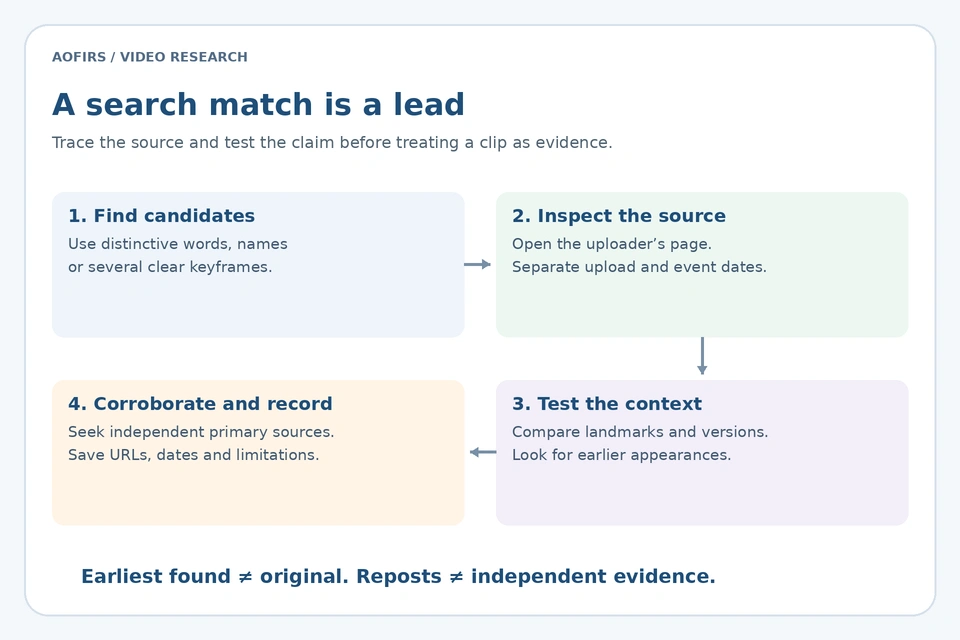
- Inspect the uploader. Open the account and source page. Look for ownership, credits and links to the full recording.
- Separate dates. Upload time is not necessarily recording time. Search for earlier versions and captions.
- Compare keyframes. Search several clear frames with Lens or a verification toolkit. A missing match does not establish authenticity.
- Check context. Compare landmarks, language, weather and the claimed event with independent primary material. Multiple reposts are not independent corroboration.
- Record uncertainty. Save the URL, uploader, query, access date and relevant timestamps. Explain what you observed and what remains unverified.
For deeper assessment, the AOFIRS report on verifying authentic videos and detecting manipulated footage discusses AI-assisted forensic methods. Its learning publication, Digital Truth: The 2026 Video Authentication Framework, offers a visual overview. Detection scores and visual artifacts should support investigation rather than serve as conclusive proof.
How video search works
Web engines index accessible video pages, hosting platforms search their uploaded collections, and archives rely on catalog records. Searchable titles and descriptions may omit important details. Transcripts can expose spoken phrases, but automatic transcription may mishear names and technical language. Supported visual systems can retrieve scenes without proving that their captions are accurate.
Coverage remains limited by privacy, access restrictions, deletion and indexing gaps. Searching another service may reveal additional candidates, but repeated copies of one recording are not independent evidence. Record the collections searched when explaining the scope of your research.
Example: finding a university lecture
Suppose you remember a lecture about ocean warming but not its title. Search the subject with the university, then add the speaker, approximate year or a distinctive phrase. Remove uncertain details if the query becomes too restrictive. Compare web results with the institution’s website and official channel.
Google supports quoted phrases and site: queries, as explained in its search refinement guidance. Do not insert a space after site:. Available filters can vary. Confirm the relevant passage by playing the surrounding recording; a transcript excerpt or displayed page date may not establish the lecture’s context or delivery date.
Keep a useful search record
Record the service, exact query, search date, source URL, uploader and relevant timestamps. Separate observations from caption claims. When comparing versions, note differences in duration, audio, cropping and captions. Explain what you could inspect and what remains uncertain.
If a video disappears, search the publisher, distinctive title phrases and available identifiers. An archived description or thumbnail may show that a recording existed without preserving playable footage. Do not promise recovery or assume that a replacement upload is complete. Use approved systems when working with confidential recordings.
Choose a stopping point that matches the task. Finding an illustrative clip requires an appropriate subject and clear usage terms. Investigating a disputed recording requires stronger source tracing, contextual checks and independent corroboration. More results help only when they answer a question or resolve uncertainty. If two uploads show the same scene, compare credits and publication histories before treating either as the original. Preserve the distinction between finding footage, identifying its earliest known appearance and establishing who created it. Each conclusion requires evidence, and unresolved gaps should remain visible in your notes.
Frequently asked questions
Which video search engine should I use first?
For an unknown host, start with Google Videos or Bing Videos and compare another engine when needed. For a known channel or institution, search its platform or archive directly.
Can I reverse-search an entire video?
There is no universal public service that reliably identifies every complete video. Extract several distinctive frames, search them separately and investigate any matching source pages.
Are all 50 resources free?
No. Many allow free discovery, but stock downloads, professional archives, AI collection services or some features require payment or an account. Always check current conditions.
Can AI search every video online?
No. Collection tools depend on uploaded or connected, indexed media and access permissions. Semantic understanding does not remove coverage gaps or prove a clip’s claims.