

Not every page on a website shows up in Google, Bing, or the other big search engines. Some never get indexed. Others are blocked from crawlers. A few only appear after you fill out a form. And plenty of PDFs live inside a site’s database, visible only through its own search box.
That raises a fair research question: Can you actually find a list of public pages or PDF files that regular search results leave out?
Yes, within limits. Search operators, web archives, site search tools, XML sitemaps, and specialized document engines can surface a surprising number of hidden or hard to find public resources. But no search query can legally sneak past login walls, private databases, paywalls, form restrictions, robot rules, or pages the owner deliberately kept off public crawlers.
First, Know the Difference Between “Not Found” and “Not Indexed”
A page can be missing from your search results for completely different reasons:
- It is indexed but simply doesn’t rank for the words you typed.
- It was crawled but never made it into the index.
- txt blocks the crawler.
- A noindex tag or X-Robots Tag header tells engines to stay away.
- The page only appears after login.
- It is generated only after a form is submitted.
- It lives in a database with no public URL at all.
This distinction matters. Google’s site: operator is handy, but it is not a complete inventory of everything Google knows about a domain. Google itself notes that results from site: are not guaranteed to be exhaustive. For site owners, Search Console’s URL Inspection tool is far more reliable for diagnosing indexing problems.
So when a page doesn’t appear in Google, don’t assume it doesn’t exist. It may just sit outside the part of the web that search engines can freely crawl and index.
Get the Search Query Format Right
A common mistake is mixing up the operators. This query is incorrect:
The filetype: operator is only for file extensions such as PDF, DOCX, PPT, XLS, or TXT not domains. A better version looks like this:
And for PDFs on the same domain:
Google supports site: to limit results to a domain and filetype: to hunt for specific document types. Getting the order and purpose of each operator right makes a big difference.
Can Search Operators Reach Pages That Appear After a Contact Form?
Usually, no.
Pages that only show up after you submit a contact form are often not ordinary public pages. They might be:
- A thank you page that isn’t linked from anywhere else on the site
- A POST response generated only after the form is sent
- A CRM or email automation endpoint
- A page blocked by a noindex tag
- Something protected by login, cookies, sessions, CAPTCHA, or CSRF tokens
- A redirect URL that only appears after a valid form action
Search engines mainly discover content by following links and crawling URLs. If there is no crawlable public URL or if the URL only appears after a POST form submission a normal search query almost never reaches it. Researchers who study “hidden databases” have pointed this out for years: many datasets are reachable only by querying a search form, not by following static hyperlinks. That has historically kept them out of general search engine indexes.
If the thank you page is public and indexed, you might still find it with queries like:
- site:example.com inurl:thank
- site:example.com inurl:thanks
- site:example.com inurl:success
- site:example.com inurl:confirmation
- site:example.com intitle:”thank you”
- site:example.com “thank you for contacting”
But if the page isn’t indexed, isn’t linked, is blocked, or is generated only after submission, Google search operators won’t reliably expose it.
Can We Find Pages That Prevent Indexing?
Sometimes but only partially.
Pages can stop themselves from being indexed with a meta robots tag such as:
<meta name=”robots” content=”noindex”>
For non-HTML files like PDFs, site owners can use the X-Robots Tag HTTP header. Google specifically recommends that approach for documents. There is a catch, though: if a URL is already blocked in robots.txt, Google may never crawl the page and therefore never see the noindex directive.
From the outside, you can look for clues, but you cannot pull a complete list of every noindexed page on someone else’s site. If you own the site, the right tools are:
- Google Search Console Page Indexing report
- Google Search Console Crawl Stats report
- URL Inspection tool
- XML sitemap files
- CMS media library
- Server logs
- Database exports
- Crawling tools such as Screaming Frog, Sitebulb, or JetOctopus
Google notes that Search Console’s Page Indexing and Crawl Stats reports help site owners see pages that are inaccessible to Google but should appear in search.
How to Find Public PDFs on a Website
Start simple:
Then expand with common URL patterns:
- site:example.com filetype:pdf inurl:uploads
- site:example.com filetype:pdf inurl:documents
- site:example.com filetype:pdf inurl:resources
- site:example.com filetype:pdf inurl:files
- site:example.com filetype:pdf “report”
- site:example.com filetype:pdf “white paper”
- site:example.com filetype:pdf “guide”
- site:example.com filetype:pdf “certificate”
For WordPress sites, try:
On education, nonprofit, or research sites, these often work well:
- site:example.com filetype:pdf “annual report”
- site:example.com filetype:pdf “policy”
- site:example.com filetype:pdf “training”
- site:example.com filetype:pdf “curriculum”
- site:example.com filetype:pdf “research”
These queries only surface PDFs that are accessible, crawlable, and already indexed. Google can index PDF files (and other document formats) when they are available in supported formats.
Does Google Actually Read the Text Inside PDF Files?
Yes when the PDF is publicly accessible and text based.
Google can index the content of many text based file formats, including PDFs. That means a search query can match words that appear inside an indexed PDF, not just in the file name or URL. For example:
The search engine is not reading the website’s private database live. It is searching its own index. If the PDF has never been crawled, is blocked, requires login, is generated after a private search, or exists only as a database record without a public URL, Google will not normally find it.
Scanned PDFs are harder. Some systems apply OCR in certain contexts, but many document search tools rely on extractable, machine readable text. CORE, for instance, notes that its full text PDF records depend on PDFs being publicly downloadable and machine readable.
Can You Find PDFs Stored Inside a Website Database?
Sometimes, but not always.
A PDF sitting in a database can be found only if the website exposes it through a public URL, a public search result, a public download link, a sitemap, an API, or an indexed document page. For example, a PDF may live in a database yet still be served through a URL like:
or
If that URL is public and crawlable, search engines may index it. But if the PDF is available only after login, payment, form submission, internal site search, role based permission, a session based download, a private database query, CAPTCHA, or a temporary signed URL, normal search engines usually cannot reach it.
A useful rule of thumb: Search engines do not index databases. They index URLs. If the database content is turned into crawlable public URLs, search engines can discover it. If the content stays inside the database with no public URL, it remains part of the deep web.
Use the Website’s Own Search Tool
Some website databases expose documents through the site’s internal search even when Google does not show them. Try searching the website itself for terms such as:
- report
- guide
- document
- download
- file
- archive
- policy
- white paper
- case study
- certificate
- form
- application
If the site search produces public result URLs, inspect whether those result pages are crawlable. Result pages that use normal GET URLs (for example, /search?q=report) are easier to revisit and research. If the site search relies on POST requests, sessions, or JavaScript only results, search engines may not be able to index those results.
Check Sitemaps and Public Index Files
Many websites expose public sitemaps. These can reveal pages and files that never appear in everyday search results. Try these common locations:
- /sitemap.xml
- /sitemap_index.xml
- /wp-sitemap.xml
- /post-sitemap.xml
- /page-sitemap.xml
- /attachment-sitemap.xml
On WordPress sites, attachment sitemaps can sometimes surface uploaded media files, including PDFs. You can also search for sitemap URLs in Google:
Sitemaps are especially useful because they show what the site owner has chosen to expose to crawlers. They still will not reveal private database files that are not listed.
Use Web Archives Carefully
The Internet Archive can help locate old pages and files that were once public. Its normal Wayback Machine is mainly URL-based rather than a universal full text search engine for every archived page. The Internet Archive’s help docs note that Wayback search lets users search archived websites by URL, and another help page mentions that full text search is something they hope to implement more broadly in the future.
For PDFs, you can try URL pattern searches in the Wayback Machine such as:
This may reveal PDFs that were once public and archived. It will not reveal PDFs that were never exposed as public URLs. Archive.org’s main search can also search metadata and, for some uploaded text items, OCR derived text from processed PDFs or scanned files.
Specialized Search Engines for PDFs and Deep Web Documents
There is no universal search engine that can walk into every website database and pull out hidden PDFs. But several specialized tools help with public or semi-structured document discovery.
| Tool | Best For |
|---|---|
| Google & Bing | General public PDFs. Use site:example.com filetype:pdf and variations with keywords or inurl:download. |
| Internet Archive / Wayback | Older public URLs, removed pages, archived PDFs, and historic website versions especially useful when a PDF once existed publicly but was later taken down. |
| CORE | Open access academic PDFs and research papers. Indexes full text when PDFs are publicly downloadable and machine readable. |
| BASE | Academic repositories, theses, open access documents, and institutional materials. Operated by Bielefeld University Library; roughly 60% of indexed documents offer free full text. |
| Google Scholar, Semantic Scholar, PubMed Central, ResearchGate |
Scholarly papers, white papers, citations, and author uploaded PDFs. Excellent for academic discovery, but they do not crawl arbitrary private website databases. |
Practical Research Workflow
When you need to find pages or PDFs that are missing from normal search results, follow this sequence. The flowchart below gives a quick visual overview.
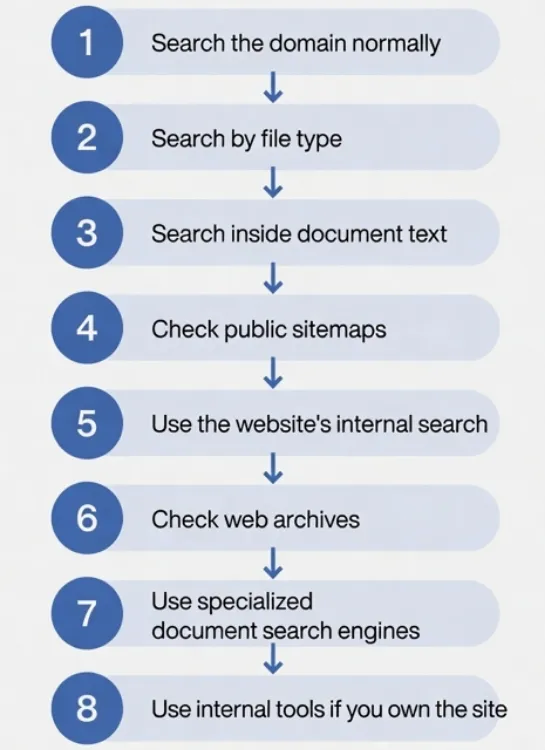
Figure: Practical eight-step workflow for discovering hard-to-find public pages and PDFs
Step by step checklist
- Search the domain normally. Start with site:example.com, then add inurl:contact, inurl:thank, inurl:download, or inurl:resources.
- Search by file type site:example.com filetype:pdf (also try docx, pptx, xlsx).
- Search inside document text. Add an exact phrase: site:example.com filetype:pdf “annual report”.
- Check public sitemaps look for XML sitemaps, attachment sitemaps, and document sitemaps.
- Use the website’s internal search. Search the site itself for document related terms.
- Check web archives. Use the Wayback Machine for old versions of pages or historic PDF URLs.
- Use specialized document search engines CORE, BASE, Google Scholar, Semantic Scholar, or Internet Archive depending on the topic.
- If you own the site, use internal tools Search Console, server logs, the CMS media library, database exports, and authenticated crawlers. These are the only reliable ways to find private, noindexed, or database only assets on your own website.
Ethical and Legal Boundary
Finding public pages is legitimate research. Bypassing access controls is not.
Do not try to access password protected files, private user data, paid materials, admin areas, form only endpoints, or files that clearly are not intended for public access. If a document appears to be sensitive, confidential, or accidentally exposed, do not download, redistribute, or exploit it. Report it responsibly to the website owner.
The Bottom Line
Yes, you can find many pages and PDFs that do not appear in normal search results, but only if they are publicly accessible somewhere.
Search operators can surface indexed PDFs and public URLs. Web archives can reveal old public files. An internal site search may expose database-backed resources. Specialized engines such as CORE and BASE can locate academic PDFs from repositories and open access sources.
No search query, however, can reach secure pages that appear only after a contact form, private database files, login only PDFs, blocked pages, or documents that have no public URL. Search engines do not search private website databases directly. They search their own indexes of URLs they were able to crawl, process, and store.
The shortest useful formula is this:
If it has a public URL and can be crawled, it can often be found.
If it only exists inside a private database, behind a form, or behind access control, search operators will not reach it.