
Online research–academic or otherwise–often requires collecting information from many different places. You may find what you are looking for in the form of videos, images, infographics, digital books, or online articles/journals.
If you are a student, then you can add presentation slides, lecture notes, shared notes, and digital textbooks to that list as well.
Some of the items in this list are digital documents. That means they can be searched, shared, and retrieved with ease. The same cannot be said about the rest. Images, in particular, are pretty difficult to work with if you need to extract some text from them. The problem is that you cannot copy text directly from most images.
This is where text extraction tools can help. Text extraction is a technique that turns the words in an image into editable text, making it much easier to search, organize, and use the information in your research. Let’s learn more about it and how you can use it today.
What Is Text Extraction?
Text extraction is the process of finding and recognizing the words that appear in an image. The recognized words are then converted into a format that word processing tools can handle.
This is done with the help of OCR. OCR stands for optical character recognition, and it is the underlying technology that makes text extraction possible.
Nowadays, OCR tools are extremely accessible and can be found online. They can be used for extracting text from images. So, instead of typing everything by hand, you can use an online OCR tool to detect the text and turn it into editable content.
This saves time compared to manual extraction and reduces the chance of typing mistakes. But that’s just the surface. Text extraction has a lot more to offer to researchers. Let’s take a look at some of the benefits OCR text extraction provides to researchers, in particular.
Why Researchers Use Text Extraction
Those new to online research may believe that it is easier to do. While they are right for the most part, they don’t realize that not everything online is in a format that is easily searchable or retrievable.
In fact, many online sources include information in image format. Examples include:
- Scanned books. A scanned book is just an album of images. None of the text can be searched, copied, or annotated.
- Historical documents. These are also in the form of images
- Research papers. These often have content protection enabled, which makes it impossible to select text or copy it.
- Presentation slides. These are also in the form of images
- Charts and infographics. Nothing needs to be said here.
- Social media posts. Once again, we are dealing with images and very little text.
- Screenshots of web pages. More images.
You would be surprised at how many times you run into image sources instead of text sources. And each time you will need a text extractor.
By extracting the text, you can search for keywords, copy important quotes, and keep better notes for your project.
How to Extract Text From Images For Online Research
So, now here comes the big question: how do you extract text? Here’s a complete list of steps anyone can follow to learn how to do that.
1. Find An Online OCR Tool
First, open your web browser and search for keywords like “online OCR tool” or “image to text converter.” You’ll find plenty of options to choose from. For this tutorial, we’ll use the Image to Text Converter by ImageToTextOCR because it supports common image formats, delivers accurate text extraction, preserves text formatting, and is easy to use. However, you can follow the same steps with any OCR tool that offers similar features. When comparing tools, look for the following:
- Free to use
- Support batch processing
- Support formatted extraction
- Support multiple input methods
- Have relaxed usage limits
Today, there are many reliable OCR tools available online, so finding one with these features shouldn’t be difficult
2. Choose a Clear Image
Now you have to gather the images that you need to extract text from. The quality of the image matters a lot as it affects the results. So, before uploading an image, check that:
- The text is easy to read.
- The image is not blurry.
- The lighting is good.
- The text is not cut off.
- The image has enough contrast between the text and the background.
The clearer the image is the easier it will be for the OCR tool to extract text from it. If you find that the image is not very good, try using an upscaler on it or secure a higher quality version of it.
3. Upload the Image
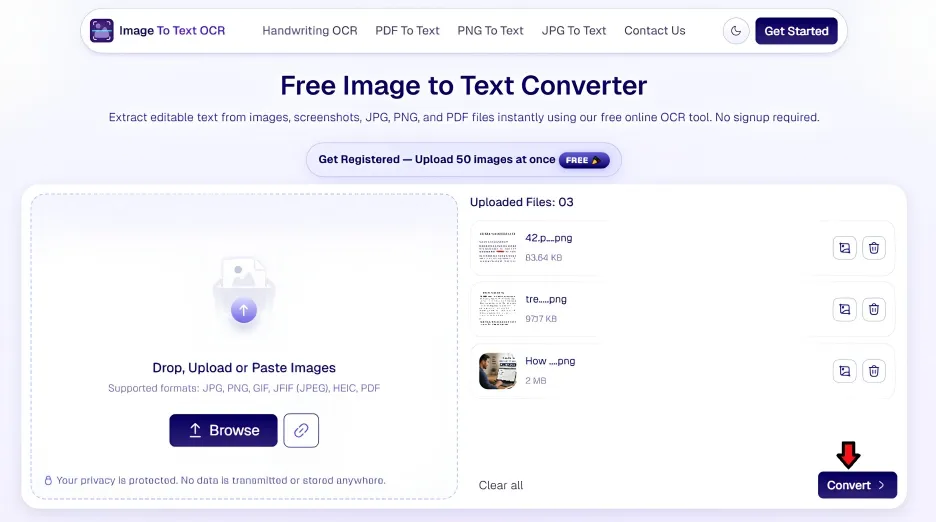
In your selected image to text converter, upload the image you want to use. If you have multiple then use the upload/input options multiple times to add them all.
Most tools accept common formats such as JPG, PNG, and even PDF. So, you don’t need to worry about image formats.
Once all images are uploaded, you need to start the text extraction. There will usually be a button that says “convert”; click/tap that to begin the process.
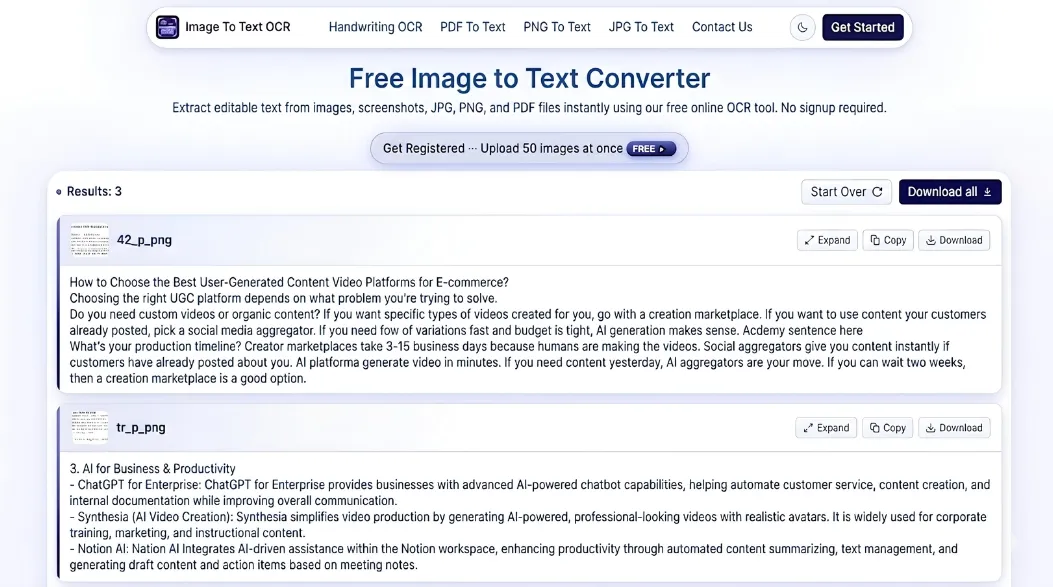
The tool scans the images, detects the text automatically, and converts it into editable content that you can copy or save. This usually takes only a few seconds.
1. Review the Extracted Text
While OCR is a mature technology, it is still not perfect. So, there is a chance that there are inaccuracies in the extracted text.
That’s why you must always read through the extracted text and compare it to the original source to catch any errors before using it in your research.
Check for things like:
- Misspelled words
- Missing characters
- Incorrect numbers
- Formatting errors
Taking time to review the output will prevent silly mistakes and ensure that your research remains credible.
2. Organize Your Notes
Once the text has been extracted, save it in a document or note-taking app. There are various ways to organize your research materials. However, that discussion is beyond the scope of this article.
Just know that keeping your research organized makes it easier to find information later when you begin writing.
3. Save Time with Searchable Text
One of the biggest benefits of text extraction is that it makes information searchable. Instead of reading every image again, you can search for keywords within your notes. Most computers have good search engines built into them. They even allow searching within documents for keywords.
This is especially useful for large research projects with many documents.
Final Thoughts
Images often contain valuable information, but they are not always easy to work with. So learning how to extract text from images can save hours when working with scanned books, lecture slides, screenshots, and historical documents. An image to text converter can quickly turn pictures into editable text, making it easier to collect, organize, and search your research materials.
By using clear images, reviewing the results, and checking the original source, you can save time while keeping your research accurate and well organized.